Mobility Aid Icons: Clean Vector Graphics for Accessible Design
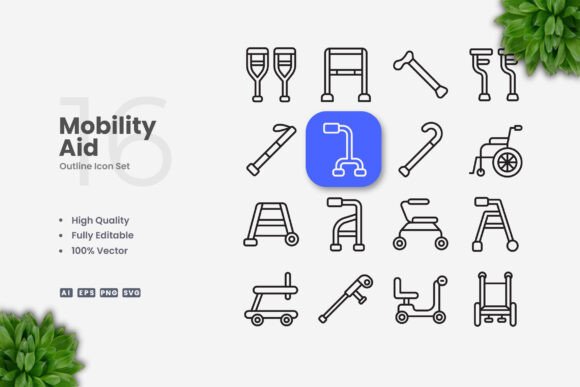
When you need to communicate accessibility, support, or independent movement in a design project, Mobility Aid Icons offer a straightforward visual shorthand. These symbols represent wheelchairs, walkers, crutches, canes, scooters, and other assistive devices. But beyond simple representation, a well-crafted set of these icons can make your work more inclusive, easier to navigate, and visually cohesive across many formats.
Whether you are building a wayfinding system for a public space, designing a healthcare app, or creating educational materials about accessibility, having a reliable icon set saves time and ensures clarity. The icons discussed here are built as clean, scalable vectors—ready to drop into your next project without wrestling with complex editing software.
What Makes a Good Mobility Aid Icon Set?
At its core, a mobility aid icon should be instantly recognizable. A person using a wheelchair, for instance, should be understood at a glance—no matter the size or context. The best icon sets achieve this through simplicity. They strip away unnecessary detail while keeping the essential shapes that define each device.
The set described here focuses on simple and clean icon design. That means consistent stroke weights, balanced proportions, and minimal visual noise. These icons are not cluttered with shadows, gradients, or intricate textures. They are flat, clear, and built to work equally well on a small mobile screen or a large printed poster.
Because they are fully vector-based, you can resize them from a favicon to a billboard without any loss of quality. The files include AI, EPS, SVG, and PNG formats, so you can work in almost any design environment. The PNG transparency also makes them easy to layer over colored backgrounds or photos.
Why Simplicity Matters in Icon Design
Icons are, by nature, a form of visual language. A good one communicates an idea faster than text. But when an icon tries to do too much—too many details, uneven lines, or conflicting visual cues—it loses its power. Simple icons are not boring; they are efficient. They respect the viewer’s time and cognitive load.
For mobility aid icons, clarity is particularly important. These symbols often appear in wayfinding signs, accessibility maps, or medical information. A confused viewer might miss a critical piece of information. Clean design removes that risk. The editable stroke feature in this set also means you can adjust line thickness to match your brand or improve legibility at different sizes.
Another advantage of simplicity is versatility. A minimalist icon fits seamlessly into a modern website, a printed brochure, or a social media graphic. It does not clash with different visual styles because it does not impose its own heavy personality. Instead, it adapts. That is the mark of a well-thought-out icon set.
Who Benefits from Using Mobility Aid Icons?
These icons are useful for anyone who communicates about accessibility, mobility, or inclusive design. That includes:
- Web and app designers who need clear, recognizable symbols for navigation, filter options, or location markers.
- Educators and trainers creating handouts, slides, or infographics about disability awareness or assistive technology.
- Healthcare professionals developing patient materials, wayfinding systems in clinics, or informational posters.
- Urban planners and architects working on signage for public spaces, transit hubs, or accessible routes.
- Marketers and small business owners who want to signal that their venue, service, or event is inclusive.
- Freelancers and hobbyists building portfolios, blogs, or social media content around accessibility topics.
Even if you are new to design, the included readme.txt and standard vector file formats make it easy to open, customize, and export these icons without a steep learning curve.
Real-World Applications and Use Cases
Let’s look at a few practical scenarios where these icons shine.
Website Accessibility Pages
A well-designed accessibility page might list available services, such as wheelchair rental, accessible parking, or companion seating. Instead of writing each item in text alone, adding a small icon next to each option improves scanability. Visitors can quickly find the information they need. The SVG file format is particularly useful here because it keeps the icon crisp on retina displays and loads efficiently on all devices.
Mobile App Navigation
If you are building a health or travel app, icons in the toolbar or menu help users orient themselves. A walker icon for “mobility services” or a scooter icon for “rental options” saves space and transcends language barriers. Because these icons have 100% editable strokes, you can tweak the line weight to match your app’s overall visual style without starting from scratch.
Infographics and Educational Materials
When explaining different types of mobility aids in a training handout or infographic, consistency matters. Using the same icon style throughout creates a professional, polished look. You can resize icons to create a visual hierarchy—larger ones for primary categories, smaller ones for sub-items. The 100% vector nature means no pixelation, even when scaling up for a classroom poster.
Print Projects: Flyers, Banners, Posters
For printed materials, you need files that handle high-resolution output without issues. The included EPS version 10 and AI source files are standard for professional print workflows. You can open them in Adobe Illustrator or CorelDRAW, adjust colors to fit your brand palette, and export at the exact resolution your printer requires. The clean design ensures that even at small sizes—like on a flyer tear-off tab—the icon remains recognizable.
Social Media and Digital Campaigns
If you are running a campaign around inclusive events or accessible services, icons help your graphics stand out in a crowded feed. A simple, clean icon paired with a bold background color creates a strong visual statement. The easy drag and drop nature of these files means you can quickly bring them into Canva, Figma, or your design tool of choice without hassle.
Customization and Flexibility
One of the biggest frustrations with pre-made icons is discovering you cannot easily change a color or adjust a line. This set removes that barrier. Every icon is 100% customizable. You can:
- Change fill and stroke colors to match a brand palette.
- Adjust stroke weight for better legibility at different sizes.
- Scale, rotate, or flip elements without any degradation.
- Combine multiple icons into a single composition for unique needs.
Because the files include source files in AI and EPS formats, you have full control. If you work in Illustrator, you can ungroup elements and fine-tune individual anchor points. If you prefer CorelDRAW, the EPS version opens smoothly. For web use, the SVG files are ready to be dropped into code or design tools with minimal prep.
The PNG files with transparency are also a nice convenience for quick mockups or for team members who do not use vector software. Just drag and drop onto any background, and you are good to go.
Important Considerations Before You Download
Before you pick an icon set, think about where and how you will use it. Not all designs work well in every context. Here are a few things to keep in mind:
- Consistency with your existing brand: If your brand uses thick, bold lines, an icon set with very thin strokes may look out of place. The editable stroke helps, but it is worth checking that the overall style aligns with your visual identity.
- Cultural and regional differences: Mobility aids can vary in design across different countries. A particular type of walker or scooter may be more common in one region than another. Choose icons that feel appropriate for your audience.
- Inclusivity beyond the icon: Icons are just one piece of a larger accessibility effort. Use them as part of a thoughtful design system that also considers color contrast, font legibility, and clear language.
- File format compatibility: Make sure your design tools can open the included formats. Most modern vector software handles AI, EPS, and SVG without issues, but it never hurts to double-check.
- The preview mockup is not included: The product listing notes this clearly. You receive the icon files themselves, not the staged display images. This is standard for icon sets, but worth remembering if you are used to seeing polished mockups in listings.
By thinking through these points early, you can avoid surprises and make the most of the set from the moment you start using it.
Practical Tips for First-Time Users
If you are new to working with vector icons, here is a quick workflow to try:
- Open the AI or EPS source file in your vector software.
- Select the icon you want to use.
- Use the direct selection tool to change the stroke color or weight.
- If you need a filled version, add a fill color from your swatches panel.
- Scale the icon to your desired size—there is no upper limit.
- Export as PNG, SVG, or PDF depending on your project needs.
That is really all it takes. The easy drag and drop nature of these files means even a beginner can start using professional-quality icons within minutes.
Final Thoughts on Clean Icon Design
A good icon set does not shout for attention. It sits quietly in the corner of a page, doing its job with precision. These mobility aid icons follow that philosophy. They are simple, clear, and built to work across the widest possible range of applications. Whether you are a seasoned designer or someone just starting to build your first website, having this kind of reliable resource in your toolkit makes your work easier and more inclusive.
The fact that everything is 100% vector, customizable, and editable means you are never stuck with a default look. You can adapt the icons to fit your exact needs, whether that means tweaking a stroke for better screen legibility or recoloring them to match a brand. And with multiple file formats included, you can move seamlessly between print, web, and social media projects without reworking your assets.
Ultimately, the goal of any icon is to communicate clearly. With a clean, well-designed set of mobility aid icons, you do just that—while also showing your audience that accessibility and thoughtful design matter to you.