Kite Icons: Simple, Clean Vector Graphics for Professional Projects
When you are building a website, designing a mobile interface, or laying out a printed brochure, the visual details often determine whether the final product feels polished or unfinished. Icon sets sit at the heart of that detail work. They guide users, reinforce brand identity, and communicate actions without a single word. But not all icon sets are created equal. Some are overly complex, difficult to customize, or locked into file formats that slow down your workflow. That is where Kite Icons enters the picture.
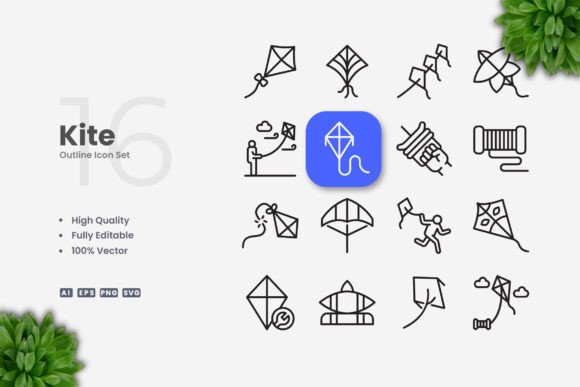
Kite Icons is a collection of 100 vector-based symbols designed with simplicity and clarity in mind. Each icon carries a clean, uncluttered silhouette that works across contexts—from responsive web layouts to print banners and social media graphics. Because the set is delivered in multiple editable formats, including AI, EPS 10, SVG, and PNG with transparency, it fits naturally into the production pipelines of designers, marketers, educators, and small business owners alike. Whether you are in the planning stages of a new brand identity or putting the finishing touches on a presentation deck, Kite Icons gives you a reliable visual language that adapts to your process rather than forcing you to adapt to it.
What Kite Icons Offers and Where It Belongs in Your Workflow
Before diving into use cases, it helps to understand what this set actually contains. Kite Icons provides 100 individual vector files, each one featuring an editable stroke and a high quality finish. The term editable stroke matters more than many casual users realize. In practical terms, it means you can open any icon in Adobe Illustrator or CorelDRAW and adjust the stroke weight up or down without distorting the shape. You can also change the color in seconds, rescale the icon to fit a tiny button or a massive poster, and even combine multiple icons into custom composite graphics. The files are organized so that you can drag and drop them directly into your working document without hunting through layers or renaming obscure assets.
Where does this fit into a broader process? Consider a typical project lifecycle. Early on, you are in a conceptual phase—sketching layouts, deciding on a visual tone, and mapping user flows. During this phase, Kite Icons can serve as a rapid prototyping tool. Instead of drawing placeholder shapes or sourcing random graphics from the web, you drag a few relevant icons onto your artboard. Their consistent style helps you evaluate proportion, spacing, and hierarchy before you commit to a final design direction. Later, during the production phase, you refine those same icons—adjusting colors to match a brand palette, tweaking stroke weight to harmonize with typography, and exporting them in the appropriate format for each deliverable. After launch, the same icons appear in support materials, training guides, and promotional banners, maintaining visual continuity across every touchpoint.
Practical Implementation: From Startup to Finished Asset
Getting started with Kite Icons is straightforward, but a few deliberate choices early on will save you time later. The set includes a Readme.txt file, which you should open first. It contains basic instructions on file structure and recommended software. Although the icons are designed to be intuitive, reading those few lines ensures you understand how the AI, EPS, SVG, and PNG versions relate to one another.
Once you have unzipped the package, import the icons into your vector software. Both Adobe Illustrator and CorelDRAW handle the AI and EPS files without compatibility issues. The SVG files are particularly useful if you work directly with web development tools or code editors—you can drop them into an HTML file, adjust the stroke inside a
Here is a workflow example for a typical marketing project. Suppose you are creating a landing page for a mobile app. You need icons for features such as notifications, settings, user profile, and analytics.
- Open the AI file in Illustrator and locate the four relevant icons.
- Change their fill color to match your brand’s primary accent—this takes about ten seconds per icon using the direct selection tool.
- Reduce the stroke weight from the default to a thinner line so the icons sit gracefully next to your body typeface.
- Export each icon as an SVG with inline styling so the developer can paste them directly into the codebase.
- Later, when you create a print-ready flyer for the same campaign, reopen the same AI file, scale the icons up to 200 percent, and export as PNG at 300 DPI. The stroke remains crisp because you are working with vectors.
This kind of flexibility matters when you are juggling multiple deliverables on a tight schedule. You do not want to redraw icons for each output. With Kite Icons, one source file serves every destination.
Integration with Other Tools, Platforms, and Assets
No icon set exists in isolation. Kite Icons interacts with the broader ecosystem of design tools, team workflows, and asset libraries you already use. Because the files are standard vector formats, they open natively in most design applications. You can place them into Figma or Sketch by importing the SVG or PNG versions. If you use Adobe XD, you can copy and paste the AI vectors directly. For motion designers working in After Effects, the AI files preserve the path data, allowing you to animate strokes or apply trim paths without re-creating the shapes.
The set also plays well with non-design tools. Educators who build slide decks in PowerPoint or Keynote can insert the PNG transparency files and retain clean backgrounds. Bloggers writing in WordPress can upload the SVGs as media assets and embed them in posts. Small business owners who outsource design work can hand the AI files to a freelancer, confident that the icon style will match the brand guidelines. In each scenario, the common thread is that Kite Icons reduces the friction between idea and finished asset.
Usability, Organization, and Quality Control
One of the less obvious strengths of Kite Icons is how the set is organized. The files are named clearly and grouped logically, but the real benefit comes from the consistency of the visual language. When all 100 icons share the same stroke thickness, corner radius, and overall proportion, you can mix and match them freely without worrying about visual dissonance. This uniformity simplifies quality control. You do not need to inspect each icon individually to check whether it looks out of place—the set’s design system handles that alignment for you.
If you manage a team of designers or work with external contributors, you can establish a simple convention: everyone uses the Kite Icons collection as the baseline for interface elements. Any new icon that needs to be created should match the stroke weight and style parameters of the set. This prevents the slow drift that often happens when multiple people add graphics to a project over time. The result is a cohesive user experience across screens, pages, and materials.
For quality control during production, here are a few practical checks:
- Open the EPS version in CorelDRAW and zoom to 800 percent. If the edges remain smooth at that magnification, the vector data is solid.
- Export a test SVG and inspect the code for stray groups or empty layers. Clean SVG code loads faster and is easier for developers to style.
- Use the PNG transparency files to verify how icons appear against dark and light backgrounds. If an icon feels too thin on a dark background, increase the stroke weight globally in the source AI file.
These steps take only a few minutes but prevent issues from surfacing later in the review cycle.
Long-Term Use and Maintaining a Consistent Visual Library
Kite Icons is not a one-project resource. Because the files are fully customizable and backed by standard formats, they can become a permanent part of your design library. After you have adjusted the colors and stroke weights to match your brand, save the modified AI file as a custom template. The next time a project requires icons, you start from that template rather than from scratch. Over months and years, that saved effort adds up.
If you are a freelancer or a small agency, you might use Kite Icons across client work as well. The simple, clean style adapts to diverse industries—tech startups, educational publishers, healthcare providers, retail brands. The key is to set aside a few minutes at the beginning of each engagement to align the icon colors and stroke weight with the client’s brand guidelines. Once that alignment is done, you have a tailored asset library ready for every deliverable in that project.
For business owners and entrepreneurs who are not professional designers, the ease of use matters even more. You likely do not have time to learn complex vector editing techniques. With Kite Icons, you can change a color by selecting the icon and clicking a new swatch. You can resize it by dragging a corner handle. The preview mockup is not included, but you do not need it—the icons themselves are production-ready right out of the box.
Final Observations on Process and Efficiency
Good icon sets do more than decorate a page. They accelerate decision-making by giving you a visual shorthand that users understand instantly. Kite Icons respects that role by staying out of your way. The editable stroke, the variety of file formats, and the drag-and-drop simplicity all point toward a single goal: helping you move from concept to finished work with fewer interruptions.
When you are planning a project, consider the icon set early. Choose one that you can carry through the entire lifecycle, from wireframes to final export. Kite Icons fits that description. It works before you start designing, during the intensive production phase, and after launch when you are creating support materials. It interacts smoothly with your existing tools, whether you use Adobe Creative Cloud, CorelDRAW, or open-source editors. And because the set emphasizes simplicity, you can hand it to a colleague or a contractor with minimal explanation.
Ultimately, the value of any design resource comes down to how well it integrates into your actual workflow—not how impressive it looks in a promotional screenshot. Kite Icons delivers on that integration. Open the file, edit the stroke, change the color, and drop it into your layout. That repeatable, reliable process is what turns a set of 100 vectors into a long-term asset for your work.