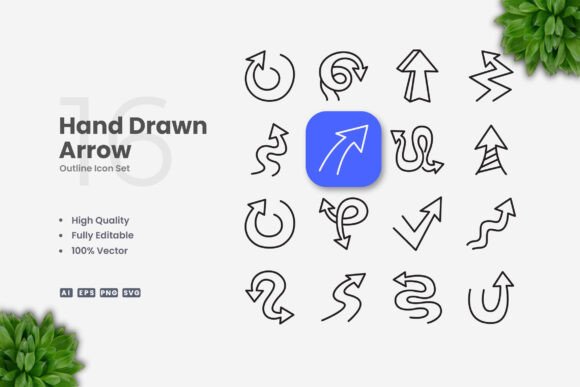
Hand Drawn Arrow Icons Bring a Natural Flow to Digital and Print Projects
There is something about a hand drawn arrow that feels different from a perfectly precise digital line. It carries a sense of movement, intention, and even a bit of personality. Hand Drawn Arrow Icons capture that quality, offering a set of vector-based arrows that look like they were sketched by hand rather than generated by software. These icons work across a wide range of projects, from websites and mobile apps to printed materials like flyers, posters, and infographics. The clean, simple design makes them easy to integrate without overwhelming the rest of your layout.
What makes them particularly useful is how naturally they guide the eye. Arrows are one of the most intuitive visual cues we have. Whether you are pointing to a call-to-action button, highlighting a step in a process, or drawing attention to a key piece of data, a hand drawn arrow feels less corporate and more human. That subtle distinction can change how people engage with your content.
Where Hand Drawn Arrows Fit Into Everyday Design Work
Think about the last time you put together a social media graphic. You likely wanted something that felt approachable, not stiff. Hand drawn arrows work well in that context because they add a layer of warmth. A simple arrow pointing toward a product feature or a discount code can make the graphic feel more like a friend sharing a tip than a brand broadcasting a message.
In infographics, arrows serve a structural role. They connect ideas, show progression, and indicate relationships between data points. Using hand drawn arrows here keeps the infographic from feeling too clinical. Data can sometimes come across as cold, but the organic shape of a hand drawn arrow softens that impression while still doing the job of leading the viewer from one section to the next.
For print materials like flyers and banners, the stakes are a bit different. Once something goes to print, you cannot tweak it on the fly. Having vector files means you can scale these arrows to any size without losing quality. That matters whether you are printing a small brochure or a large poster. The hand drawn style also tends to stand out in a sea of overly polished corporate print work. A local event flyer, a community notice, or a small business promotion can all benefit from that slightly imperfect, human touch.
Who Reaches for These Icons and Why
Designers working on mobile apps often need small, clear visual cues that do not clutter the interface. A hand drawn arrow can be used in onboarding screens to show users where to tap next. Because the stroke weight is editable, you can adjust the arrow to match the app's overall visual language. If your app has a friendly, casual tone, a hand drawn arrow fits naturally. If the app is more minimal, you can reduce the stroke weight and keep the arrow subtle.
Web developers and content creators also find these useful for blog posts and landing pages. When you want to point out a specific line of text or draw attention to a testimonial, an arrow is a straightforward solution. The PNG transparency files make it easy to drop an arrow onto a screenshot or an existing image without spending time on masking or background removal.
Educators and trainers often use arrows in instructional materials. Whether it is a PowerPoint slide, a handout, or an online course module, arrows help learners follow along. Hand drawn arrows are less intimidating than rigid geometric shapes, which can make instructional content feel more accessible. Someone learning a new process is already dealing with enough complexity. A friendly arrow can reduce that sense of friction.
Small business owners who handle their own marketing might not have formal design training. That is where the drag-and-drop simplicity of these files becomes valuable. You do not need to know how to draw or illustrate. You just open the file, pick the arrow you want, and place it where it makes sense. The included readme.txt file offers basic guidance, which helps if you are unfamiliar with vector software.
Real Situations Where These Arrows Make a Difference
Imagine you are putting together a presentation for a local workshop. You want to show the progression from one topic to the next. A standard arrow shape works, but a hand drawn one adds a bit of character without being distracting. It tells your audience that this is not a generic slideshow. It was put together with care.
Consider a social media post promoting a new blog article. You have a striking headline and a featured image, but something feels missing. A small hand drawn arrow pointing toward the link in your bio or the swipe-up function can increase engagement. It is a nudge, not a demand. That subtle difference in tone can lead to more clicks.
For a printed menu at a café or a small restaurant, hand drawn arrows can highlight daily specials or recommended pairings. It keeps the menu looking fresh and handcrafted, which aligns with the atmosphere many independent establishments work hard to create. The editable stroke means you can match the thickness of the arrow to the weight of your menu typeface, keeping everything cohesive.
In an infographic about a complex topic like sustainability or health statistics, arrows help break down the information into digestible chunks. A hand drawn arrow pointing from a statistic to an explanation makes the connection feel more natural than a stiff line or a blocky pointer. Readers process the information faster because the visual cue feels familiar.
What to Consider Before You Start Using Them
One thing to keep in mind is the overall style of your project. Hand drawn arrows work best when the rest of your design has some organic elements. If your entire layout is built on sharp geometric shapes and rigid grids, a hand drawn arrow might feel out of place. That does not mean it cannot work, but you may want to adjust the stroke weight or color to bridge the gap between the two styles.
Color customization is straightforward with vector software. You can change the arrow color to match your brand palette or the specific mood of the project. Because the files are vector, you are not limited to the colors shown in previews. That flexibility is useful when you are working across multiple projects with different color schemes.
Another consideration is scale. These arrows look great at various sizes, but if you blow them up to a very large size for a banner or poster, the hand drawn quality becomes more pronounced. That can be a good thing, but it is worth testing at your intended output size before finalizing the design. The vector format makes resizing risk-free, so you can experiment without quality loss.
Strengths That Make These Icons Stand Out
The editable stroke feature is a practical strength. Not all icon sets allow you to change the stroke thickness easily. With these arrows, you can make them bold and noticeable or thin and delicate depending on what your layout needs. That level of control is useful when you are designing for multiple formats from a single source file.
The file variety is another practical advantage. Having the AI source file, EPS version 10, SVG, and PNG transparency means you are covered whether you are working in Adobe Illustrator, CorelDRAW, or even simpler tools that accept SVG or PNG. You are not locked into one workflow. The PNG files with transparency are especially handy for quick mockups or for use in tools that do not support vector formats.
The high quality design of each arrow ensures that the hand drawn effect reads as intentional rather than sloppy. There is a difference between something that looks hand drawn and something that looks unfinished. These icons land on the right side of that line. They have the character of a sketch with the polish of a finished vector graphic.
Where You Might Need to Supplement
The set includes 100 vector arrows, which covers a wide range of directions and styles. But depending on your project, you might need additional icon types beyond arrows. These are specialized for directional cues, so if your project requires other symbols like checkmarks, stars, or social media icons, you would need to source those separately. That is not a limitation of the set itself, just a practical observation about how it fits into a larger design toolkit.
The preview mockup is not included, which is worth noting if you are used to seeing how icons look in a staged layout before purchasing. The readme.txt file helps compensate by offering guidance on how to use the files, but you will need to open the vectors yourself to see them in action.
How Different Users Get Different Value
A freelance designer might use these arrows across multiple client projects, from restaurant menus to tech startup landing pages. The versatility of the vector format and the range of files make it easy to reuse the same set in different contexts. A social media manager might keep the PNG files handy for quick posts and stories, saving time on creating custom graphics from scratch.
A non-profit organizing a community event could use the arrows on flyers, social media posts, and printed signage. The hand drawn style aligns with a grassroots, approachable image. A teacher creating worksheets or study guides can add arrows to point out important concepts or to create visual pathways through the material.
Each user pulls something slightly different from the same set of files. That is the sign of a well-designed resource. It does not dictate how it should be used. It just offers the tools and lets the user decide what fits their specific situation.
Hand Drawn Arrow Icons are not about flashy design or complex features. They are about solving a simple problem in a human way. Whether you are building a website, putting together a presentation, or designing a flyer, sometimes all you need is a small, well-crafted arrow to guide people where you want them to go.