Mobile Payment Icons: Smart Choices for Clean, Professional Design
When you are building a website, designing an app, or preparing marketing materials, the icons you choose can make or break the user experience. Mobile payment icons have become essential for businesses that process transactions online or in person. These small visual elements communicate trust, convenience, and speed. But many people make avoidable mistakes when selecting or using them. This article walks through common pitfalls and shows you how to get the most from a simple, clean set of mobile payment icons.
What Makes Mobile Payment Icons So Useful
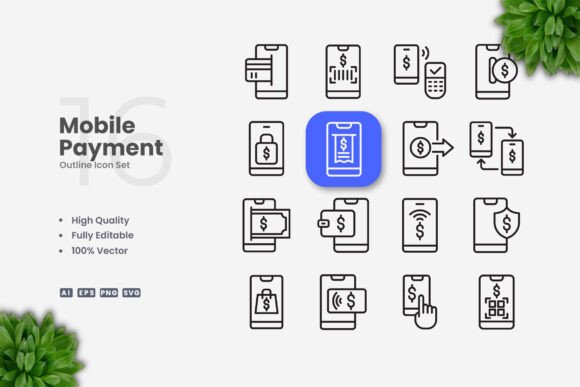
Mobile payment icons represent familiar services such as Apple Pay, Google Pay, Samsung Pay, and other digital wallet platforms. They help customers instantly recognize which payment methods you accept. For designers, entrepreneurs, and marketers, having a consistent and well-designed set of these icons saves time and ensures a professional look across all touchpoints. A clean vector set, for example, lets you resize, change colors, and edit stroke weights easily using software like Adobe Illustrator or CorelDRAW. This flexibility makes them suitable for websites, mobile apps, books, social media, infographics, flyers, print materials, banners, posters, and much more.
But simply having a set of icons is not enough. How you use them matters just as much as the quality of the design itself.
Common Mistake: Choosing Inconsistent Icon Styles
One of the most frequent errors is mixing icons from different sets or styles. You might end up with one icon that has a thick stroke, another that is filled, and a third with rounded corners while others are sharp. This inconsistency creates visual noise and makes your interface look unprofessional. Users notice these small differences even if they cannot name them. The result is a loss of trust and a cluttered appearance.
How to avoid this: Stick with a single cohesive set. A high-quality vector pack labeled "100 Vector" and "100 Customizable" usually means every icon follows the same design rules. Check that stroke weights, corner radii, and proportions are uniform across the entire collection. If you need to edit stroke weight, do it globally so all icons remain balanced.
For example, imagine you are designing a checkout page for a small business website. Using icons from one consistent set makes the page look clean and trustworthy. Mixing styles would make the same page feel disjointed and hastily put together.
Overlooking Resolution and Scalability
Another common oversight is ignoring how icons behave when resized. A payment icon that looks crisp at 24 pixels might blur or lose detail at 200 pixels, especially if it is a raster image. This is a problem for anyone producing materials for both digital and print use. A blurry icon on a poster or banner undermines your brand’s credibility.
Solution: Use vector formats. SVG files and source files like AI or EPS version 10 allow infinite scaling without quality loss. The PNG transparency files included in good sets give you a handy fallback, but vectors are your primary tool for professional results. When you buy or download a set, confirm that it includes SVG files and editable source formats. This way, you can resize for a mobile app screen or a large banner with equal clarity.
Ignoring Brand Color and Style Customization
Many people use payment icons exactly as they come, without adapting them to their brand guidelines. While some platforms discourage altering official logos, mobile payment icons often allow flexibility in color and stroke weight, provided you respect basic recognition. A common mistake is leaving icons in default black or gray when your brand uses a specific palette. This makes the icons feel disconnected from the rest of your design.
The better approach: Use the "Editable Stroke" and "100 Customizable" features to match your brand colors. For instance, if your website uses a warm blue accent, you can apply that same blue to the payment icons. Keep the design simple and clean so recognition remains high. Test a few variations to ensure the icons still read clearly at small sizes. Just be careful not to overcomplicate them. A subtle hue shift or stroke weight adjustment is often enough to tie them into your visual identity without sacrificing readability.
Misunderstanding File Formats and Use Cases
Beginners sometimes download a set and use only one file type for everything. This leads to problems. A PNG file works great for social media graphics but lacks the scalability needed for large print projects. An SVG file is perfect for web use but might not be supported by every printing service. An EPS file is excellent for professional print workflows but can be overwhelming for a quick social media post.
Check the included files before you start. A robust set provides Source File Ai, EPS Version 10, SVG File, and PNG Transparency. Plus, a readme.txt file explains the contents. Use the right format for the right job. For websites and apps, SVG is your best friend. For print materials, use EPS or AI files. For quick social media graphics, PNG with transparency works well. Knowing these differences saves time and prevents frustration.
Underestimating the Importance of Stroke Weight
Stroke weight is not just a detail, it is a core part of readability. Icons that are too thin can disappear on busy backgrounds or at small sizes. Icons that are too thick can feel heavy and cartoonish. The mistake is using the default stroke weight without testing it in your actual layout.
Here is practical advice: Start with the provided stroke weight from a reliable set. Then test it on your website mockup or print draft. If the icons look weak, increase the stroke slightly. If they dominate the page, reduce it. Because the set is editable, you can adjust this in Adobe Illustrator or CorelDRAW in seconds. Make sure all icons in the set receive the same adjustment so consistency holds.
Neglecting Accessibility and Legibility
Accessibility is often overlooked when choosing payment icons. Small details like low contrast between the icon and background, or overly intricate designs, can make it hard for users with visual impairments to identify payment methods. This is especially important for mobile apps and websites where speed and ease of use matter.
Keep the design simple and clean. High contrast between the icon and its background is essential. Use solid shapes or well-defined outlines. Avoid thin lines or complex patterns that might not render well on all screens. If your icons include text, ensure it is large enough to read at typical display sizes. A set described as "Simple and clean icon design" is already a good starting point. Double-check contrast ratios and test on different devices to be sure.
Buying or Downloading Without Checking Editability
Another mistake is assuming all icon sets are equally customizable. Some sets lock layers or flatten artwork, making it impossible to change colors or stroke weights. This severely limits your ability to adapt the icons to your project. When evaluating a set, look for the words "100 Vector," "100 Customizable," and "Editable Stroke" in the description. These phrases indicate that the files are built with layers and paths you can modify.
Open the AI or EPS file in your vector software before committing. Check that each icon is a separate object, that colors are easy to change, and that strokes are not expanded into fills. This simple verification prevents compatibility headaches later. The readme.txt file included should also explain how the icons are organized and what you can edit.
Realistic Examples of Better Application
Consider a freelance graphic designer creating a social media infographic about digital payment trends. Using a clean vector set of mobile payment icons, they adjust the stroke weight to match the infographic's overall line style. They color the icons using the client's brand palette and export as PNG for Instagram and SVG for a blog post. The result is cohesive, professional, and on-brand.
Now consider a small business owner designing a flyer for a storefront promotion. They download a set of payment icons, but use the default black color and raster PNG format. The flyer prints with pixelated edges and the icons feel disconnected from the store's colorful branding. A better choice would be to open the AI file, adjust the colors to match the flyer's palette, and export as a high-resolution PNG or EPS for printing. The extra ten minutes of customization makes a noticeable difference in the final product.
What to Check Before You Commit to a Set
Before you purchase or download a set of mobile payment icons, take a moment to verify a few things. Confirm the file formats match your typical workflow. Look for SVG, EPS, AI, and PNG transparency. Read the description for "100 Vector" and "Editable Stroke" guarantees. Check that the icons cover the payment methods you actually need, such as Apple Pay, Google Pay, and others relevant to your audience. Open the preview images and examine the design consistency across all icons. If a preview mockup is not included, that is fine, you are buying the icons, not the mockup. Just ensure the source files are complete.
Also, consider your own skill level. If you are new to vector software, a set with clear organization and a helpful readme.txt file will make your life easier. If you are an experienced designer, editable stroke layers give you the freedom to create custom variations quickly. The right choice depends on your specific project, but the principles of consistency, scalability, and editability remain the same.
Making the Most of Your Mobile Payment Icons
Once you have a solid set, use it across as many channels as you can. Use the same icons on your website checkout page, in your mobile app, on social media posts, in printed brochures, and on in-store signage. This repeated visual cue builds user confidence and familiarity. Because the icons are vector-based, you can adapt them to any medium without starting from scratch.
Keep your icons updated as payment methods evolve. A good vector set can be edited to include new services or remove outdated ones. The "Easy Drag and Drop" feature many sets offer means you can add icons to your design file quickly without complex importing steps. This saves time, especially when you work under tight deadlines.
Finally, remember that less is often more. A clean, simple icon communicates faster than a busy one. Users scanning a payment page want to recognize their preferred method in a split second. Overly decorative icons slow them down. Choose a set that prioritizes clarity and simplicity. Your audience will appreciate it, and your designs will look more polished.
Final Thoughts on Getting It Right
Mobile payment icons are small assets with a big impact. Avoiding common mistakes like inconsistent styles, poor scalability, neglected accessibility, and format misuse will elevate your projects. Focus on vector sets that offer editability, uniform design, and multiple file types. Customize colors and strokes to fit your brand, but keep the icons recognizable and simple. Test them in your actual layouts before finalizing. By following these practical steps, you will produce work that looks professional, functions well, and builds trust with your audience. Whether you are a beginner or an experienced creator, a thoughtful approach to icon selection and use makes all the difference.