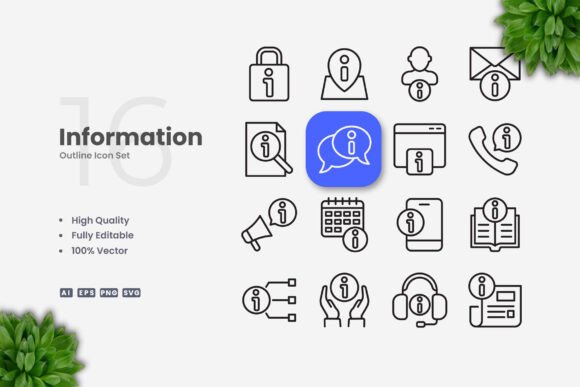
Information Icons as the Backbone of Visual Communication in Digital and Print Media
Why Information Icons Have Become Indispensable Across Media
From mobile app interfaces to printed flyers, the role of information icons has expanded far beyond simple decoration. These small, often minimalist symbols carry meaning that transcends language barriers and reduces cognitive load for users. In an era where attention spans are short and clarity is paramount, a well-designed icon set can communicate complex instructions, categories, or warnings in a fraction of a second. Whether you are designing a social media infographic or a corporate poster, the icons you choose set the tone for the entire piece.
The demand for simple and clean icon design stems from a universal need: instant comprehension. Unlike photography or intricate illustrations, icons strip away details and focus on the essence of an object, action, or concept. This reductionist approach makes them ideal for websites, mobile apps, books, and even print materials like banners and flyers. When you deploy a set of information icons that share a consistent visual language, you create a system that users can learn once and apply everywhere.
Core Characteristics That Define High‑Quality Information Icons
What separates a professional icon set from a mediocre one is not just the subject matter but the underlying craftsmanship. High quality design in icons means each glyph is optically balanced, with even stroke weights and harmonious proportions. A truly 100 vector icon set ensures that scaling from a 16‑pixel mobile icon to a 48‑inch poster graphic produces zero loss of sharpness. This mathematical precision is what makes vector graphics the gold standard for both screen and offset printing.
Editable stroke is another hallmark of versatile icon sets. When you work with vector software like Adobe Illustrator or CorelDRAW, being able to adjust the stroke weight without breaking the shape is a huge time saver. Imagine you are designing a mobile app where UI guidelines demand a 2‑px stroke, but your infographics for social media need a thicker 4‑px line for legibility. With a well‑prepared vector file, you simply tweak the stroke and the entire set updates consistently. The same flexibility applies to color: you can recolor a set of information icons to match a brand palette in seconds.
- Optical consistency – icons that appear equal in weight and size even if the geometry varies.
- Minimal detail – focus on the core shape so the meaning is clear at small sizes.
- Grid alignment – icons built on a base grid (e.g., 24×24 or 32×32) for easy arrangement.
- Semantic clarity – each symbol should have one obvious interpretation without relying on text labels.
How Creators and Professionals Benefit from Customizable Vector Assets
For hobbyists and researchers who may not have a background in graphic design, the ability to edit stroke weight and change colors removes the intimidation of creating visuals from scratch. You can take a set of information icons and adapt them to a thesis presentation, a community flyer, or a classroom handout without needing to hire a designer. Business owners and educators often operate on tight budgets and timelines, so having a ready‑to‑use icon library that is 100 customizable is a practical advantage.
On the professional side, creators and marketers leverage the concept of easy drag and drop to speed up production. When you receive a source file Ai (Adobe Illustrator) or EPS version 10, you can open it instantly and start dragging symbols onto your artboards. The SVG file format is particularly valuable for web developers because it can be embedded directly into HTML and styled with CSS. Meanwhile, the PNG transparency files are ready for immediate use in slides, social media posts, and infographics without any extra export steps.
Consider the workflow of a professional who needs to produce a series of instructional posters for a corporate training room. They open the Readme.txt file included in the pack to understand the naming conventions and folder structure. Then they drop the needed icons onto the canvas, resize them to fill the layout, and adjust the color to match the company branding. The entire process takes minutes, not hours, because the 100 vector assets respond perfectly to scaling and recoloring.
File Formats and Their Real‑World Applications
Understanding the strengths of each format helps you pick the right tool for the job. The source file Ai (native Adobe Illustrator) preserves layers, symbols, and live effects, making it the best choice if you plan to extensively customize the information icons. The EPS version 10 is a universal vector format that can be opened in almost all vector editors, including older versions of CorelDRAW and even some free alternatives like Inkscape. This backward compatibility is crucial for teams that work across different software versions.
The SVG file has become the de facto standard for web and mobile app interfaces because it is lightweight, responsive, and interactive. You can change the size via CSS, apply hover effects, and even animate parts of the icon – all without loading additional images. For print projects like flyers, banners, and books, the PNG transparency format is often used during the layout phase because it previews correctly in word processors and presentation software. When the final file goes to press, the vector source ensures a crisp result.
- Ai (Adobe Illustrator) – full editing control, layers, and symbols.
- EPS version 10 – cross‑platform compatibility, reliable for print workflows.
- SVG – web‑native, responsive, styleable with CSS.
- PNG with transparency – ready‑to‑use raster, ideal for quick mockups and slide decks.
- Readme.txt – documentation that helps you navigate the icon set and licensing notes.
A frequent observation from hobbyists is that they often download icon packs only to find the icons are raster images that lose quality when enlarged. By choosing a set that provides SVG file and EPS version 10 alongside the source file Ai, you guarantee that your information icons remain sharp whether they appear on a 5‑inch phone screen or a 50‑inch poster.
Strategic Use Across Different Media and Audiences
The versatility of simple icon design becomes obvious when you consider how the same icon set can serve multiple purposes. On a website, icons function as navigational cues, helping users find categories like Contact, Services, or FAQs without reading text. Inside a mobile app, they become the primary interaction points – a magnifying glass for search, a gear for settings, a house for home. In books and e‑books, information icons break up long text passages and guide the reader’s eye to key takeaways or call‑outs.
For social media managers, icons are the building blocks of shareable infographics. Instead of relying on stock photos that may not align with the brand, they can drop in a set of clean icons to illustrate stats, steps, or comparisons. The editable stroke feature lets them thicken the outlines so the icons are legible on a small mobile screen. Similarly, flyer and poster designers use icons to create a visual hierarchy: large icons for the main message, smaller ones for supporting points. The key is to maintain consistent stroke weight and style across every element so the layout feels cohesive.
Educators and researchers often need to present data in a way that is both accurate and engaging. An icon that represents a microscope, a test tube, or a demographic group can make a research poster more approachable without sacrificing professionalism. Because the information icons are 100 vector, they can be scaled to fill a slide background or reduced to fit a footnote. The high quality design ensures that even at small sizes, the details remain distinguishable.
Design Principles for Achieving Simplicity and Clarity
Simplicity in icon design does not mean boring – it means purposeful reduction. Every unnecessary line, curve, or dot that is removed makes the icon easier to process. A well‑crafted information icon uses negative space as a design element, creating shapes that are immediately recognizable. For example, a profile icon should clearly show a head and shoulders without extra hair details or clothing folds. The viewer’s brain fills in the rest.
When working with vector tools like Adobe Illustrator or CorelDRAW, you can apply a few key techniques to maintain simplicity:
- Align all strokes to the pixel grid so lines stay crisp at small sizes.
- Use consistent corner radii – rounded corners feel friendlier, sharp corners appear more technical.
- Limit the color palette to one or two hues plus a neutral for versatile branding.
- Test icons at both very small and very large sizes to ensure they remain legible.
Creators who follow these principles find that their simple and clean icon design works across cultural boundaries. A magnifying glass means search in almost every country, and a house means home. This universality is why information icons are so effective in multilingual contexts such as airports, conference banners, and global mobile apps.
Customization Workflows and Practical Tips
Let’s walk through a typical scenario where a business owner is preparing a presentation for investors. They have a set of information icons delivered as source file Ai and SVG file. They open the Ai file and see that each icon is grouped and labeled. To change the color of the entire set to match their brand blue, they select all groups and apply a new fill. Because the icons were built with editable stroke, the stroke outline automatically inherits the new color. Then they export a few key icons as PNG transparency for use in PowerPoint. The whole process takes less than ten minutes.
For web developers integrating icons into a website, the SVG file format is the most efficient. You can embed SVG code directly into HTML, which means no extra HTTP requests. With CSS, you can change the icon color on hover, animate it with transitions, and even swap the icon’s stroke weight depending on screen size using media queries. The easy drag and drop nature of SVG files also means you can preview them in a browser simply by dragging the file from a folder into any open browser window.
One observation I have made across many projects is that users often underestimate the value of the included Readme.txt file. It usually contains information about the icon naming convention, font dependencies (if any), and licensing terms. Taking a moment to read it can save you time when you are searching for a specific symbol later. For instance, if you need an icon for “settings,” the Readme might tell you that it is named “gear.svg” or “cog.ai,” so you can find it quickly among dozens of files.
Addressing Common Misconceptions About Information Icons
Some professionals worry that using pre‑made icon sets makes their work look generic. The reality is that because these icons are 100 customizable, you can inject your brand’s personality through color, stroke thickness, and even subtle modifications to the shapes. The foundation is clean and simple, but your application of it can be entirely unique. Another misconception is that vector icons are difficult to edit. In truth, software like Adobe Illustrator and CorelDRAW is designed specifically for manipulating vector paths, and the learning curve for basic edits like resizing and recoloring is quite gentle.
Consumers and hobbyists sometimes believe that high‑quality icons are only accessible to professionals with expensive software. However, the provided SVG file can be opened in free tools like Figma, Inkscape, or even a simple text editor for code‑based adjustments. The PNG transparency files give a second option for those who want to use the icons immediately without any editing software. This dual availability ensures that the information icons are usable by anyone, regardless of their technical skill level.
Considerations for Selecting the Right Icon Set
When evaluating an icon pack, look beyond the number of icons and examine the consistency of the stroke weight across the entire set. Even a small variation in line thickness can make the set feel disjointed when displayed together. The high quality design guarantee mentioned in many packs is a good sign, but you should also check for details like whether the icons have been aligned to a common bounding box and whether they include subtle optical adjustments (e.g., a square icon may appear slightly larger than a circular one due to optical illusion, so designers often shrink square icons by a tiny amount to make them visually match).
For print projects, ensure the vector files are in CMYK or can be easily converted. The EPS version 10 format typically handles color spaces well, while SVG file is usually RGB and may need conversion for offset printing. Many designers keep a dedicated set of information icons in their library that they have thoroughly tested in both digital and print contexts, so they know exactly how the icons behave under different conditions. The editable stroke feature becomes especially important in print because you may need to thicken strokes slightly to compensate for ink spread on uncoated paper.
The Role of Information Icons in Responsive and Multi‑Device Ecosystems
As the line between mobile apps, websites, and social media continues to blur, information icons serve as the common visual thread that ties together a brand’s presence across platforms. A user might first see your icons in an Instagram infographic, then encounter the same symbols on your mobile app, and later recognize them on a printed flyer. That repetition builds familiarity and trust. The ability to edit stroke weight for different contexts – thinner for sleek app interfaces, thicker for bold print materials – ensures that the brand remains consistent without being rigid.
Researchers in user experience have noted that icon grids with a clear, simple design reduce task completion times by eliminating the need to read supporting text. This is why information icons are now standard in dashboards, data visualization, and educational software. For educators, the high quality design of a vector icon set means that the same icon can be printed in a textbook, displayed on a projector, and embedded in an online quiz without any quality degradation. The upfront investment in a well‑crafted icon library pays dividends every time the asset is reused.
Whether you are a creator experimenting with a new visual style, a professional delivering a client project, or a business owner building a consistent brand, the decisions you make about icon quality and format affect the outcome. Choosing a set that offers source file Ai, EPS version 10, SVG file, and PNG transparency – along with clear documentation – gives you the flexibility to adapt to any medium. The simplicity of a clean icon from a 100 vector set is not a limitation; it is the starting point for countless applications across websites, mobile apps, books, social media, infographics, flyers, print, banners, and posters.