How Quality Control Icons Streamline Your Visual Workflow Across Projects
Icons are the silent workhorses of modern communication. They guide users, reinforce meaning, and reduce cognitive load. But not all icon sets are built for real work. When you need consistency, flexibility, and clarity, a dedicated set of quality control icons designed with simplicity in mind becomes an essential asset. Whether you are building a dashboard, formatting a presentation, or laying out a print flyer, the right icons save time and eliminate friction.
What Quality Control Icons Bring to Your Process
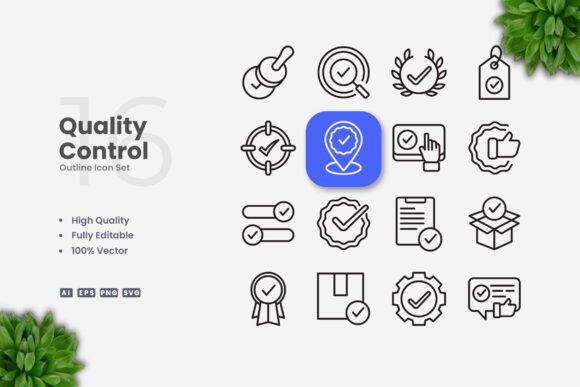
A quality control icon set typically includes symbols for approval, inspection, certification, standards, compliance, and validation. These visuals are not decorative. They communicate specific states, actions, and criteria that matter in workflows where precision is non-negotiable. Think of a manufacturing checklist, a software testing report, or an audit summary. Each icon carries a meaning that a team can recognize instantly, without reading a single word.
This particular collection offers 100 vector-based icons. Every file is customizable at the stroke level, color can be changed in seconds, and the weight of each line is editable. That means you are not locked into someone else's visual choices. You adapt the icons to your brand, your medium, and your audience.
Where These Icons Fit in a Real Workflow
Icons are not standalone artifacts. They integrate into larger systems. Here is how quality control icons support work before, during, and after a project.
Before a Project: Planning and Preparation
When you are mapping out a process, icons help stakeholders visualize steps. A quality control icon set lets you create flowcharts, wireframes, or storyboards that include inspection points, approval gates, and feedback loops. Instead of drawing rough shapes, you drop in recognizable symbols. This speeds up alignment during initial planning. It also makes documentation clearer for cross-functional teams who may not share your domain vocabulary.
If you are preparing a pitch or a proposal, icons elevate the visual tone without requiring a designer. You can insert them into a slide deck, a one-pager, or a RFP response. The clean, simple style ensures they do not distract from your message.
During a Project: Real-Time Communication and Dashboards
Active projects generate status updates, error logs, and review checklists. A quality control icon set gives you a consistent visual language for dashboards and reporting tools. For example, a green checkmark icon next to a task signals completion. A magnifying glass icon indicates a review stage. A warning triangle flags an issue that needs attention. These icons reduce the time team members spend parsing text.
Mobile app interfaces also benefit. When you need to show a user that their submission has passed validation or that a product meets standards, a simple icon communicates instantly. Since stroke weight and color are editable, you can match the icons to your app's theme without starting from scratch.
After a Project: Documentation, Reports, and Archives
Post-project materials like audit reports, compliance summaries, and quality reviews require clarity. Icons break up dense information and highlight key findings. A certificate icon next to a passed criterion, a cross icon near a deviation, and a gear icon for process improvement suggestions make reports scannable. This matters when decision-makers review documents under time constraints.
For long-term archiving, vector formats like AI, EPS, and SVG ensure icons remain editable years later. You are not dependent on proprietary software or raster files that degrade. PNG transparency gives you immediate use in presentations and web content without background cleanup.
Practical Implementation Tips
Getting the most out of a quality control icon set requires more than just downloading files. Consider how you organize, edit, and apply them across different contexts.
Preparation Before You Start Editing
Open the included readme.txt file first. It often contains licensing notes, folder structure details, and version information. Knowing the organization of the assets upfront saves time when you need a specific icon later. Unzip the files into a dedicated folder on your local drive or cloud storage. Name the folder clearly so you can locate it across projects.
If you work with a team, place the icon set in a shared asset library. This ensures everyone uses the same visual language. Consistency across documents, presentations, and interfaces builds trust with your audience.
Editing in Vector Software
Adobe Illustrator and CorelDRAW are the primary tools for customization. Open the AI or EPS file to access the full vector paths. To resize, select the icon group and scale proportionally. Hold the Shift key to maintain aspect ratio. For color changes, select the stroke or fill and apply your brand palette. If you need a different stroke weight, adjust the stroke panel. This is especially helpful when icons need to match typography weights or fit inside small UI elements.
SVG files work well for web developers who prefer code-based editing. Open them in a text editor or a vector program to tweak attributes directly. PNG files with transparency let you drop icons into mockups or social media graphics without further processing.
Organizing Icons for Efficiency
With 100 icons, organization matters. Create subfolders by category: approvals, inspections, standards, actions, and objects. Alternatively, sort by usage context like print, web, and presentation. Tag files with descriptive names so you can search quickly. When you reuse icons across projects, consistent naming prevents duplication and confusion.
Consider building a master template file that contains all icons arranged on a grid. This gives you a single source of truth. When you need a specific icon, copy it from the master file instead of searching through folders. This approach reduces friction during tight deadlines.
Maintaining Consistency Across Outputs
If you use icons in multiple formats, check that stroke alignment and color remain uniform. For example, a 2px stroke weight works well on screen but may appear too thin in print at small sizes. Test your icons at the intended output size before finalizing. Vector scaling means you can enlarge icons without quality loss, but always preview them at actual size.
For social media, infographics, and posters, simplicity is your friend. The clean design of these icons means they remain legible at small sizes and do not introduce visual noise. Resist the urge to overcomplicate with gradients or shadows. Flat icons pair well with modern layouts and maintain readability across devices.
Use Cases Across Different Roles
Different professionals will integrate quality control icons into their workflows in distinct ways. Here are some examples.
Marketers and Content Creators
Incorporate icons into landing pages, email templates, and social media graphics to highlight trust signals like "certified," "verified," or "quality approved." A simple icon next to a headline draws the eye and reinforces credibility. For infographics, icons replace bullet points and make data comparisons more intuitive.
Educators and Trainers
Use icons in training manuals, slide decks, and e-learning modules to indicate learning objectives, assessment criteria, or completion status. Adult learners respond well to consistent visual cues. When every module starts with a target icon and ends with a certificate icon, the structure becomes self-explanatory.
Entrepreneurs and Small Business Owners
Quality control icons are useful for internal process documentation. Create standard operating procedures that include visual checkpoints. Employees can follow the flow without heavy reading. For customer-facing materials, icons communicate professionalism and attention to detail.
Freelancers and Hobbyists
If you design templates, planners, or digital products, icon sets help you deliver polished assets faster. You can offer variations by changing colors or stroke weights without redesigning from scratch. The SVG and PNG formats are immediately compatible with platforms like Canva, Notion, and WordPress.
Long-Term Value and Maintenance
A well-made icon set remains useful across multiple projects and years. The vector formats in this collection support future editing. When your brand evolves, update the icon colors in one session. When you expand into new media, export the formats you need. The initial investment of time in organization and customization pays back every time you reuse an icon.
Because the set includes a readme.txt and source files, you retain control over your assets. You are not dependent on a subscription service or an internet connection. This is especially important for print projects where file stability matters, and for clients who need editable source files at delivery.
Final Observations on Integration
Icons are most effective when they serve a functional purpose rather than pure decoration. Quality control icons excel in contexts where clarity, trust, and process are central. By choosing a set that prioritizes simple design, editability, and format flexibility, you remove technical barriers between your idea and its execution.
Before your next project, ask yourself where a visual cue could replace a sentence. Then reach for an icon that fits. The time you save on explanation is time you can spend on the work that matters.